Monday, 2 November 2015

Friday, 30 October 2015

ImageView and FrameLayout with gestures control and position animation.

source: https://android-arsenal.com/details/1/2705


GestureViews

Maven Central
ImageView and FrameLayout with gestures control and position animation.
Main goal of this library is to make images viewing process as smooth as possible and to make it easier for developers to integrate it into their apps.

Demo video

Demo video
(Click for full demo video)

Sample app

Get it on Google Play

Usage

Add dependency to your build.gradle file:
compile 'com.alexvasilkov:gesture-views:2.0.0'
Note: min SDK version for library is 9, but it was tested mainly on 15+.

License

Copyright 2014 Alex Vasilkov

Licensed under the Apache License, Version 2.0 (the "License");
you may not use this file except in compliance with the License.
You may obtain a copy of the License at

   http://www.apache.org/licenses/LICENSE-2.0

Unless required by applicable law or agreed to in writing, software
distributed under the License is distributed on an "AS IS" BASIS,
WITHOUT WARRANTIES OR CONDITIONS OF ANY KIND, either express or implied.
See the License for the specific language governing permissions and
limitations under the License.


Tuesday, 20 October 2015

Android Application UI Testing (with monkey and monkeyrunner)

source: http://hariniachala.blogspot.in/2011/09/android-application-ui-testing-with.html


Android Application UI Testing (with monkey and monkeyrunner)


Android has some built in UI testing tools. These tools can be used for automated UI testing. However the tools are not so simple to use. This post is an attempt to set a guideline towards using these tools.

There are 2 main UI testing tools available

1.monkey (aka. UI/Application Exerciser Monkey)

This tool is a command line based tool that can be primarily used to stress test your application UI. It is the simplest tool to use. Here's how..

Running monkey as an application UI stress tester (runs a random set of commands on the application. useful to UI stress testing)

- Open a command console.
- First direct your console to the location of the adb (Android Debug Bridge) program in the android sdk. Typically you can use the following command for this..

$cd path_to_android_sdk/platform-tools/

path_to_android_sdk should be the path to the sdk on your pc

- Now make sure you device is connected with the application running on it or that the emulator is running the application.

- To test on device issue the following command in the console

$./adb -d shell monkey -p package_name -v 1000

(replace -d with -e to test on the emulator.
package_name is the name of the application package abnd it usually begins with com.
-v specifies the number of UI events to be generated, in this case we ask it to generate 1000 random events)

Now you will see the monkey stress testing your app.

If you get force close message while running monkey you have just discovered a bug that needs fixing. You can run

./adb logcat

in the console to generate the relevant logs.


Running specific commands in monkey
The monkey tool can also be used to run a specific set of commands on the application. However it is easier to use the monkeyrunner for this purpose.

On the connected device (to run on emulator simply replace -d with -e)

./adb -d shell monkey -p package_name --port 1080 &
./adb -d forward tcp:1080 tcp:1080
telnet localhost 1080

Now the following will be printed on cmd line..

Trying ::1...
Trying 127.0.0.1...
Connected to localhost.
Escape character is '^]'.

Now you can type in your instructions

>tap 150 200

you can write all instruction into a script (script.txt) as below..

# monkey
tap 100 180
type 123
tap 100 280
press DEL
press DEL
press DEL
press DEL
press DEL
press DEL
press DEL
press DEL
type -460.3

now run..

./adb -d shell monkey -p package_name --port 1080 &
./adb -d forward tcp:1080 tcp:1080
nc localhost 1080 < script.txt


2. monkeyrunner

The monkeyrunner tool is an API for writing automated UI tests. You can use it to write specific scripts that run a series of commands and inspects the output by taking screenshots etc. The android SDK includes two special scripts written using monkeyrunner which help in running automated UI tests. The scripts are..

monkey_recorder.py
monkey_playback.py

Copy these scripts to /tools folder in the android sdk. Set the console path to the tools directory. Open up the application on the emulator.

You can run the recorder as follows..

./monkeyrunner monkey_recorder.py

Below is a screenshot of monkey_recorder recording actions for calculator.


Use 'Export Actions' button to export the set of actions into a script (eg: calc.mr)

now run the cal.mr script on a connected device as follows.. (first make sure the emulator is shut down)

./monkeyrunner monkey_playback.py calc.mr

For playback to run properly you need to take precautions of setting the correct wait times and using the correct press, fling, type methods in the recorder.

Conclusion: Android has a good collection of tools meant to enable UI test automation. However they still have a lot more room for improvement especially in terms of ease of use and efficiency.

References:

http://developer.android.com/guide/developing/tools/monkey.html
http://developer.android.com/guide/developing/tools/monkeyrunner_concepts.html
Android Application Testing Guide - Diego Torres Milano

Wednesday, 14 October 2015

Beware EditText on API 21

sourcehttp://blog.danlew.net/2015/09/09/dont-use-dynamic-versions-for-your-dependencies/

Beware EditText on API 21

Check out these two EditTexts. One is on an API 21 device, the other on an API 22 device.
See the difference? It's even more pronounced with "show layout bounds" enabled:
The height and vertical alignment of the EditTexts are different! This was caused by a change in the background of EditText between v21 and v22 (diff).
This change can cause sadness if your EditText is vertically aligned with otherViews, such as this case in Trello:
The text should be aligned with the icons, yet clearly it's not. The screenshot above is from 5.0; any other version of Android looks perfectly fine.
This problem crops up even if you're using AppCompat. AppCompat usually defers to the system material styles on v21+, which is the source of the problem.

Solution

Both solutions I've come up with use resource qualifiers to handle API 21 in a special manner.
One possibility is to import your own EditText background assets for API 21. Unless your app is filled with vertically-aligned EditTexts this seems like more effort than it's worth, since precision-targeting the background of EditTexts for just a single API version is tricky.
The hackier (but easier) solution is to just define different margins or paddings based on the API level. For example, I found that they're ~6dp off, so you end up with resources like this:
<!-- values/dimens.xml -->  
<dimen name="edit_text_spacing">6dp</dimen>

<!-- values-v21/dimens.xml -->  
<dimen name="edit_text_spacing">0dp</dimen>

<!-- values-v22/dimens.xml -->  
<dimen name="edit_text_spacing">6dp</dimen>  
I'd be the first to admit it's ugly, but if there's only a handful of places you're fixing the problem, it's not so bad.

Tuesday, 22 September 2015

Android App Template

1) Source: https://github.com/mwolfson/android-historian

1) Screen Flow Demo

Android Ultimate Historian - Material Design Demo

This app is designed to demonstrate the various components of the Android Support libraries, in particular, showing how to implement Material design into your app, using these controls.
This is not a complete example (but will be growing), and is intended to provide a high-level overview of many of the main controls in the Support and Design libraries:
  • AppCompatActivity
  • CoordinatorLayout
  • AppBarLayout & Toolbar
  • RecyclerView (with ItemDecorators)
    • LinearLayoutManager
    • GridLayoutManager
    • StaggeredGridLayoutManager
  • Snackbar
  • TabLayout
  • AppCompat Tinting
  • NavigationView
  • Snackbar
  • SwitchCompat
  • AlertDialog
  • CardView
  • FloatingActionButton
  • TextInputLayout
  • TextAppearance.AppCompat

Special Thanks

This project was originally forked from the Cheesesquare project. Special thanks to Chris Banes.
Item Decorator from recyclerview-playground project. Special thanks to Dave Smith (DevUnwired.

Pre-requisites

  • Android SDK, Build Tools and Support Repository for v23.0.1
====================================================================
2) Download xml template
www.wsdesign.in

Android App Code Architecture

source: http://frank-zhu.github.io/android/2014/11/22/android-app-code-architecture/

Android App Code Architecture

Andrews APP architecture building codes

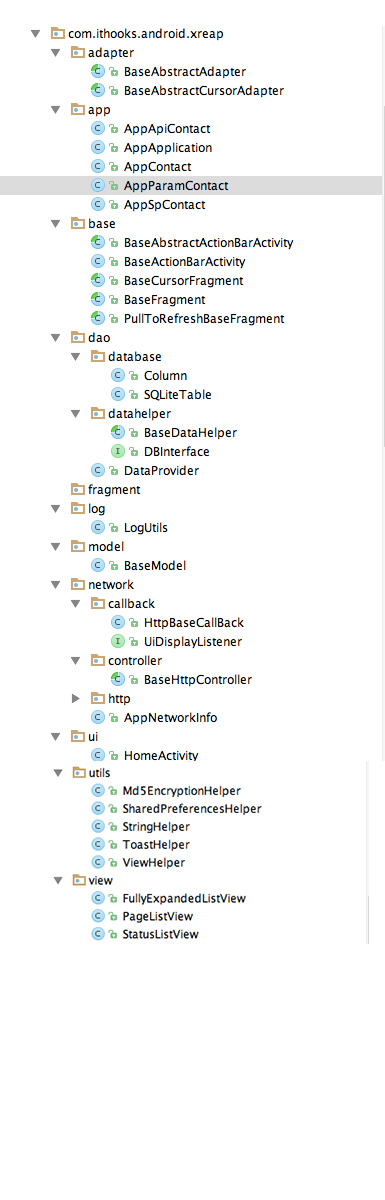
Android developers engaged for two years, always wanted to organize a get their usual code developed by other projects as infrastructure development, even before finishing off one, but because of their own short-board technology of the time, would have been a bit of code behind, so today is a relatively reasonable thing to rearrange the backup code, if you are interested in previous versions can click here ---> AndroidAppCodeFramework

The new code structure I will use the following open source libraries
  • Network traffic will use these open source libraries Retrofit OKHTTP
  • Network image loading Picasso / UIL
  • View注解 Butterknife
  • DB will use the local cache CursorLoader do with contentProvider
  • JSON parsing will use GSON
  • Notify update data may use EventBus or otto instead of broadcast
  • Message Tip AppMsg instead of the system Toast
  • Round picture CircleImageView

  • adapter ListView / GridView adapters are placed in this folder
  • The main APP app put some constants and configuration files
  • The main activity base and put the base class file fragment
  • dao major release database files
   Table database database 
   datahelper database data manipulation helper class, each table help derive a class action table
  • The main fragment file fragment put different pages
  • log APP help fight LOG class, you can switch off the output LOG to be removed directly by setting compiled Gradle function mode can also be confused.
  • model data model classes folder
  • network network operating mainly put files
    base class file storage controller callback HTTP requests main storage network control APP requested class action
  • ui main discharge activity file
  • utils some help classes are placed in this folder
  • view custom VIEW file
Under every file I have done a comment, a reference to the library also gives a link address, most use a little look WIKI should have no problem. Finally, the code download address, welcome Star and Fork github CODE downloads
By the way, in order to encode more quickly, you may spend some of the IDE plug-ins will be more rapid 1, ButterKnife Plugin , an IDEA plug-in, this should tie in with this open source library ButterKnife use, an annotation library, source As Dragger, by the Great God JakeWharton hand.
2, Parcelable , Andrews data serialization plug, not a last resort before recall will not use Parcelable to serialize, because he wrote it is too much trouble, with the introduction of a plug-in, my mother no longer have to worry about me write arcelable serialized data, and this is a loud noise with a loud noise was great
More plug-in tools can look me in this blog ----> Android handy and popular plug-ins and tools

Tuesday, 15 September 2015

Fresco Image download library for android

source: http://frescolib.org/

About Fresco

Fresco is a powerful system for displaying images in Android applications. It takes care of image loading and display so you don't have to.
Fresco's image pipeline will load images from the network, local storage, or local resources. To save data and CPU, it has three levels of cache; two in memory and another in internal storage.
Fresco's Drawees show a placeholder for you until the image has loaded and automatically show to the image when it arrives. When the image goes off-screen, it automatically releases its memory.
Fresco supports Android 2.3 (Gingerbread) and later.